Importing DXF and DWG files into Illustrator
DXF files are often referred to as “unitless” and there are frequent problems when importing them into other software. Adobe Illustrator, as software primarily used for design, likes to work in Points (defined as 1/72 of an inch) and subsequently often tries to import DXF files as if drawn in points.
This will cause problems with the size of your design – parts will come out approximately 1/3 of their intended size.
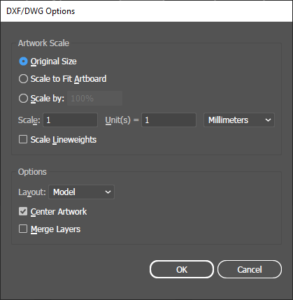
Selecting the Correct Scale
- The DXF/DWG Options page appears when you open a DXF file in Illustrator.
- Select Original Size
- Set the scale units dropdown box to millimeters (or whatever unit your original file was drawn in)
- Set the Scale text box to 1.
- Set the Unit(s) text box to 1.
- Click OK.
Grouping Objects
Lines and other objects are usually not grouped or joined together when you import them. This can cause your drawing to become broken apart.
Before moving objects around you may wish to group them.
Select objects using the Selection tool (shortcut key V) and then group them together (Ctrl+G). These grouped objects and lines will now move together as one, preventing accidental misalignment during the nesting process.