When I select “Vector” in Epilog Dashboard my artwork disappears and the time for the toolpath changes to zero
You can sometimes run into a problem where the vectors disappear when the vector toolpath type is selected in Epilog Dashboard. There are a few different reasons for this happening, but in most instances it is because the stroke path direction has been set incorrectly.
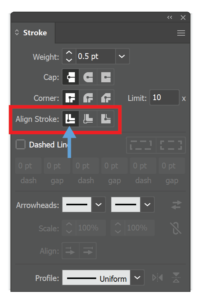
Setting Align Stroke to Centre
In the Stroke panel, Illustrator provides three alignment options:
- Align Stroke to Centre
- Align Stroke to Inside
- Align Stroke to Outside
These are useful in graphic design situations, but for laser cutting use Align Stroke to Centre – the other options will not work reliably.
Select the object you want to change
- Select the object you want to update
- Open the Stroke panel (Window menu → Stroke)
- Select Align Stroke to Centre.
To select all the similar stroke lines in the design you can use Select menu → Same → Stroke Color or Stroke Weight. Alternatively, if your design is simple, you can select everything (Ctrl+A) and then set the stroke all at once.