Parts of my design are cutting multiple times
Symptoms
- The laser cuts the same path more than once
- The estimated time is much longer than expected
Causes
This is usually caused by one of two problems – either the number of cycles for a path has been increased in Epilog Dashboard, or there are some duplicated lines in your CAD file.
Cycles setting in Epilog Dashboard
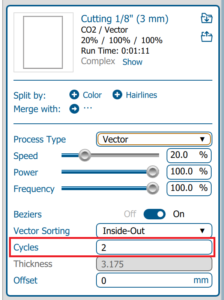
In the toolpath settings area of epilog dashboard you can adjust the number of cycles each toolpath runs for. In this case, cycles is set to “2” so the path with cut twice.
- Change the cycles value to 1.
The cycles option is useful for materials that need a few passes to cut through, or where you don’t want to put a lot of energy into the material at once and would prefer to work more slowly.
It’s also useful for engraving, where one pass doesn’t quite clean up the surface of the material.
Duplicated lines in CAD
CAD drawings can sometimes contain two or more lines positioned directly on top of each other. These are difficult to see because the lines appear to be a single object.
- Zoom into the artwork.
- Select a suspicious line.
- Move it slightly away from its original position.
- Check whether another line remains underneath.
- Use Undo (Ctrl+Z)
- Delete unnecessary duplicate geometry.
You may find that duplicated lines are grouped together. If you’re having trouble finding the offending geometry, try ungrouping objects.

Finding overlapping lines visually
In Illustrator lines placed directly on top of each other can appear thicker and slightly darker.
In this illustration the top red line is a single stroke. The lower line has two identical strokes overlapping, which makes it appear darker and thicker.
Check carefully before deleting geometry. Two lines that appear to overlap may be separate parts of the design.
Pay particular attention to:
- Shared edges.
- Repeated CAD geometry.
- Copied objects.
- Lines around holes.